

Record customer calls and product demos on your Mac
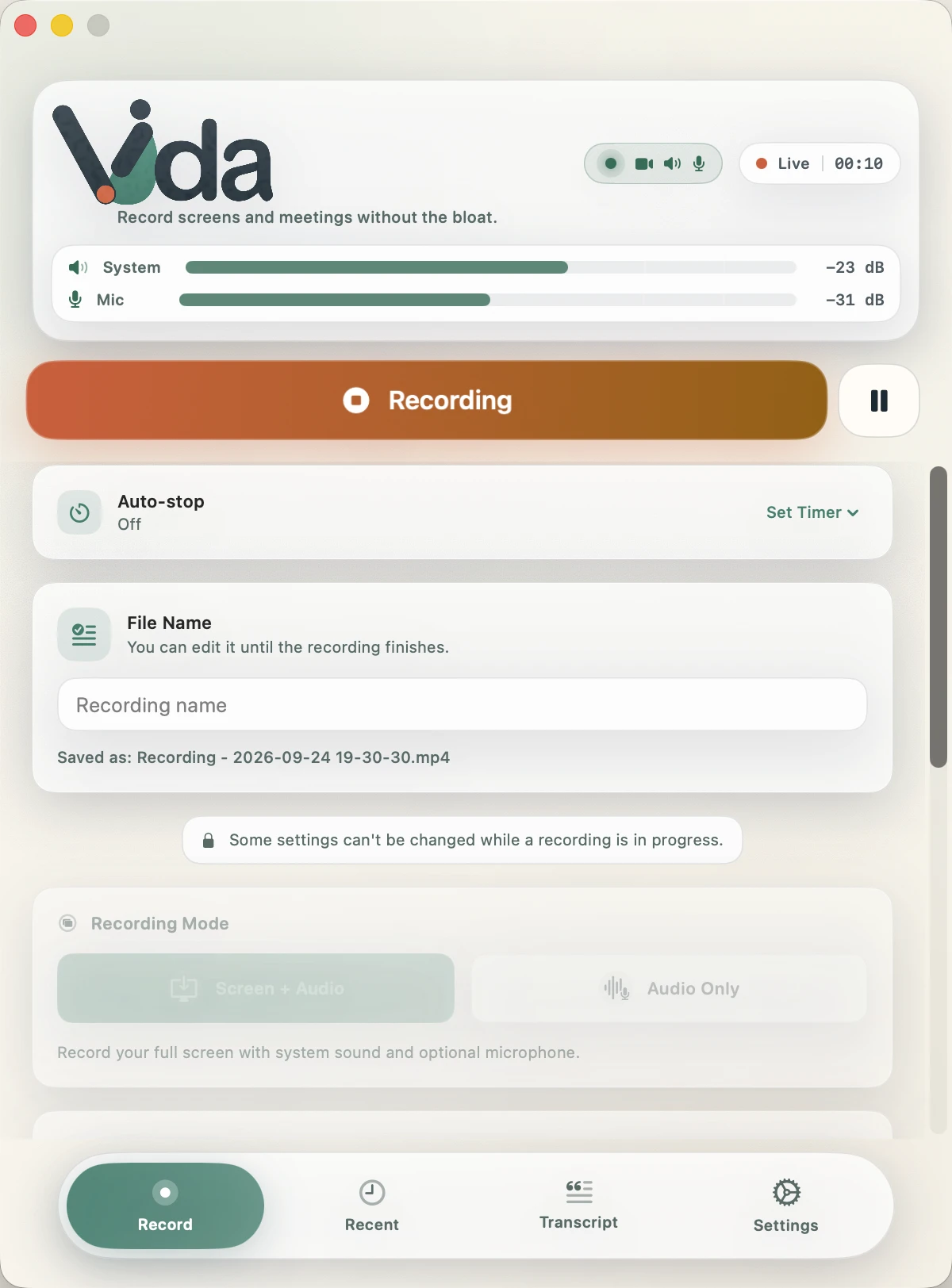
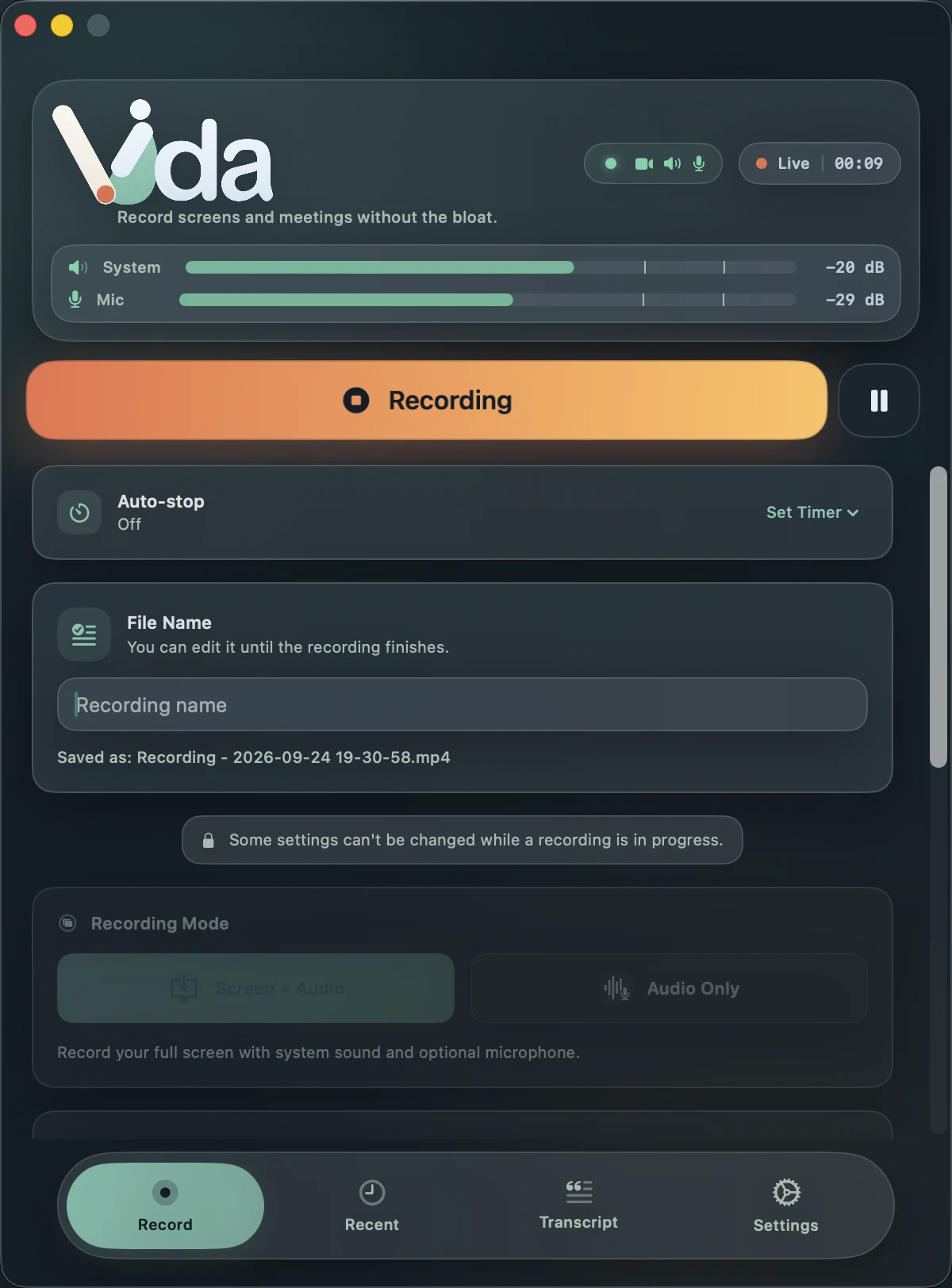
Vida records customer calls, demos and support sessions on your Mac: your screen, the customer's voice through system audio, and yours through the microphone. The REC badge confirms each source while the call is live, so you find out about missing audio before the customer hangs up, not after.
What you need, and how Vida handles it

- Both sides of the call
- System Audio records the customer and Microphone records you. Nothing joins the call.
- The demo on screen
- Screen + Audio records the full display you are sharing.
- Proof it is recording
- Video, speaker and mic each turn green once Vida confirms them from captured samples.
- Notes you can share
- Transcripts label speakers and export as Markdown or Text for tickets, docs and research notes.
- Customer data kept local
- Recordings and transcripts stay in a folder you choose. Vida uploads nothing.
How to record it
- Get Vida and allow Screen Recording and Microphone when macOS asks.
- Join the call in your meeting app or browser.
- In Vida, choose Screen + Audio for a demo, or Audio Only for a conversation.
- Turn on System Audio for the customer and Microphone for your voice.
- Click Start Recording and wait until every selected source turns green before the call gets going.
- Stop when the call ends, then transcribe it on your Mac and export Markdown for your notes.
Before you record
Tell customers you are recording, and why, before you start. Follow your company's policy and the law where you and they are: some places require every party's consent.
Good to know
- Vida records one full display. Close or move windows with other customers' data before you share your screen.
- System Audio records every sound your Mac plays. Turn on a Focus mode to keep notifications out.
- Speaker labels are automatic. Check them before you quote a customer.
Questions
Will the customer see that I am recording?
No notice appears in the call, because Vida adds nothing to it. Tell them yourself.
Can I share a recording with a colleague?
Yes. Recordings are ordinary MP4, MOV, M4A or WAV files, so you can share them the way your team already shares files.
Can Vida turn a call into notes?
Vida gives you a transcript with speaker labels, exported as Markdown or Text. It does not write summaries.
Record the meeting. See that it's working. Keep it private.
Requires macOS 14 Sonoma or later. Apple Silicon recommended for transcription.