

Record and transcribe research interviews on your Mac
Vida records interviews on your Mac, in person with a microphone or remotely with the call's sound, and transcribes them there with speakers labeled. Nothing is uploaded and there is no account, so the recording and transcript stay with you until you decide where they go.
What you need, and how Vida handles it

- Keep source material private
- Recordings and transcripts are saved only to a folder you choose. Vida has no server that receives them.
- Record in person or remotely
- Use Audio Only with your microphone for a conversation in the room, and add System Audio for a video call.
- Tell speakers apart
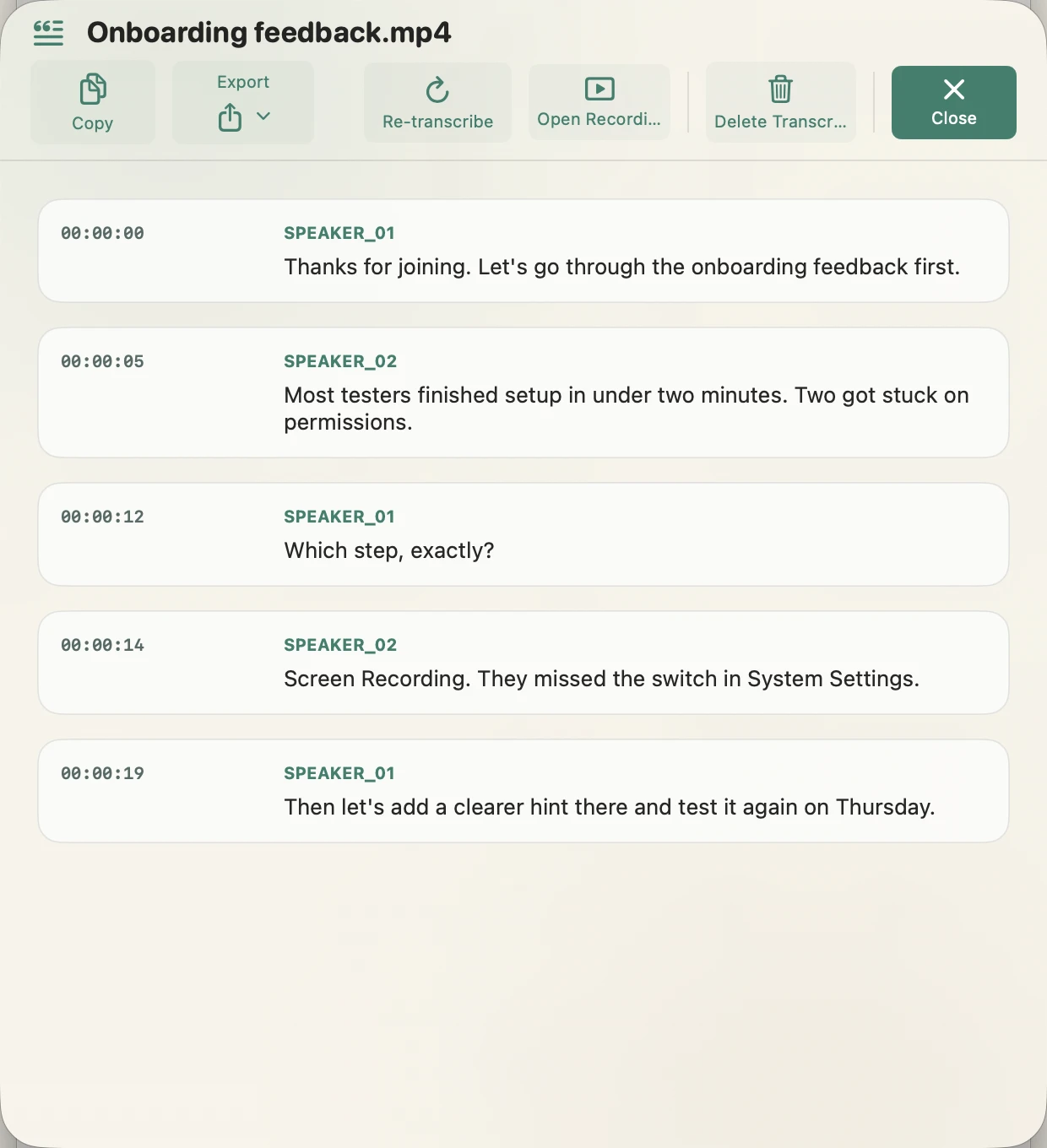
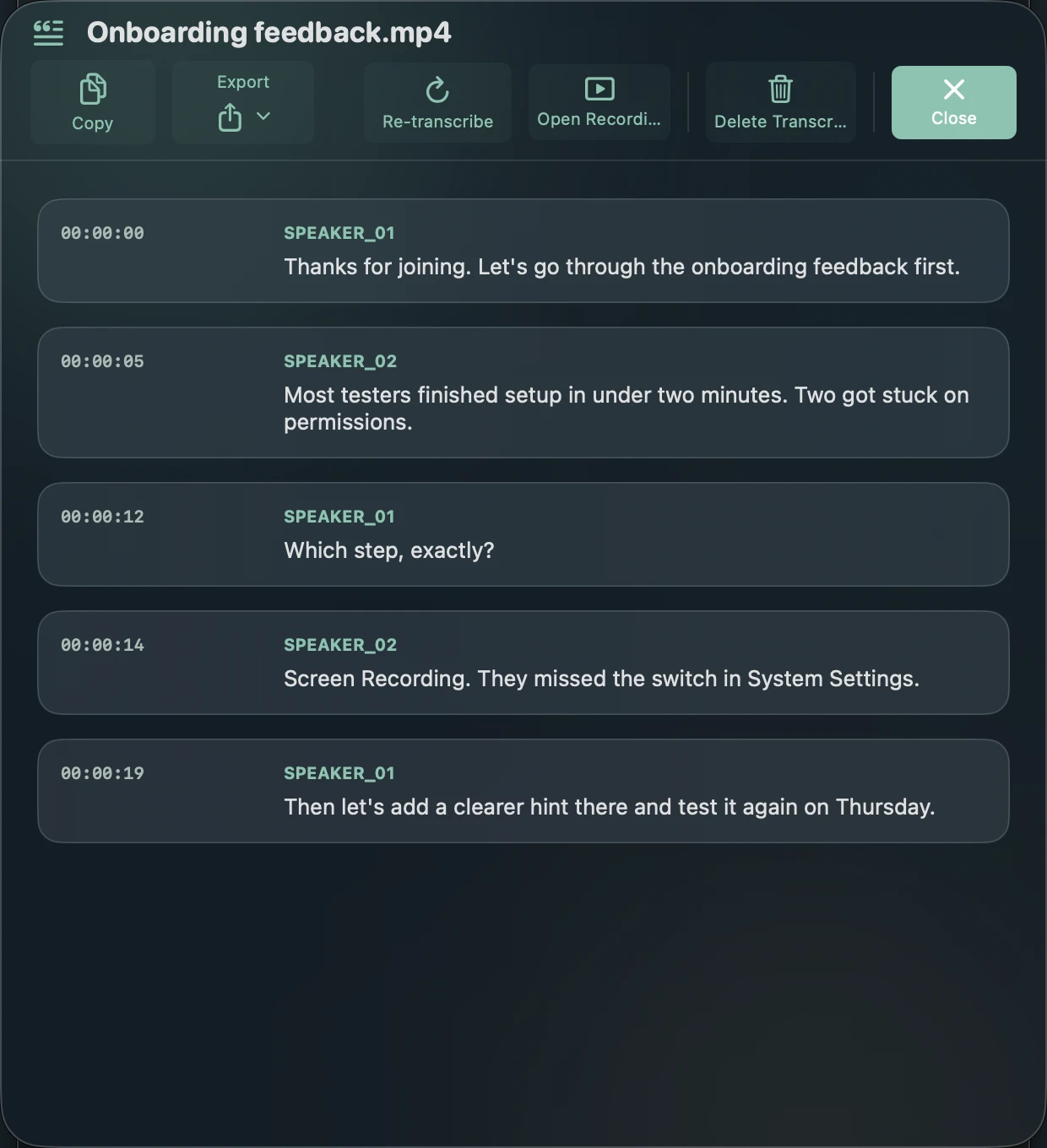
- Every transcription labels who is speaking, including the five free ones.
- Work in the interview's language
- Transcribe English, Spanish, French, German, Italian, Portuguese, Japanese, Russian, Chinese or Korean, or let Vida detect the language.
- Bring text into your analysis
- Export Text or Markdown for coding and quotes, or SRT and WebVTT with timestamps.
- Use your field's terms
- With Vida Pro, a custom glossary corrects names and terminology.
How to record it
- Get Vida and allow Microphone access. For remote interviews, also allow Screen Recording, which macOS uses for system audio.
- Ask for consent before you start, in the way your ethics approval or data plan requires.
- In Vida, choose Audio Only for an in-person interview, or Screen + Audio if you also need the screen.
- Turn on Microphone, plus System Audio for a remote interview, and pick the microphone you will use.
- Click Start Recording and wait until each selected source turns green on the REC badge.
- When you finish, transcribe the recording on your Mac and export the transcript.
Before you record
Recording an interview usually needs the participant's informed consent. Follow your ethics approval, your institution's data policy and the law where the interview takes place. Vida does not announce that it is recording.
Good to know
- Speaker labels are automatic. Check them against the recording before you quote anyone.
- Recording works offline. Transcription needs a one-time download of the speech models from Hugging Face, then runs without a connection.
- If your data plan requires encryption at rest, keep recordings on an encrypted disk, such as a Mac with FileVault turned on.
Questions
Is Vida GDPR compliant?
Vida never receives your recordings or transcripts: they stay on your Mac. Whether your study complies depends on how you collect consent and store and share the data, so follow your institution's guidance.
Can I transcribe interviews I recorded on another device?
Yes, with Vida Pro. Import MP4, MOV, M4A or WAV files and transcribe them on your Mac.
How accurate is the transcript?
It depends on audio quality, accents and people talking over each other. Record with a good microphone close to the speakers, and review the transcript against the audio before you rely on it.
Does Vida work without an internet connection?
Recording always works offline. Transcription needs a one-time download of the speech models; after that it runs on your Mac without a connection.
Record the meeting. See that it's working. Keep it private.
Requires macOS 14 Sonoma or later. Apple Silicon recommended for transcription.