

Record system audio and your microphone on a Mac
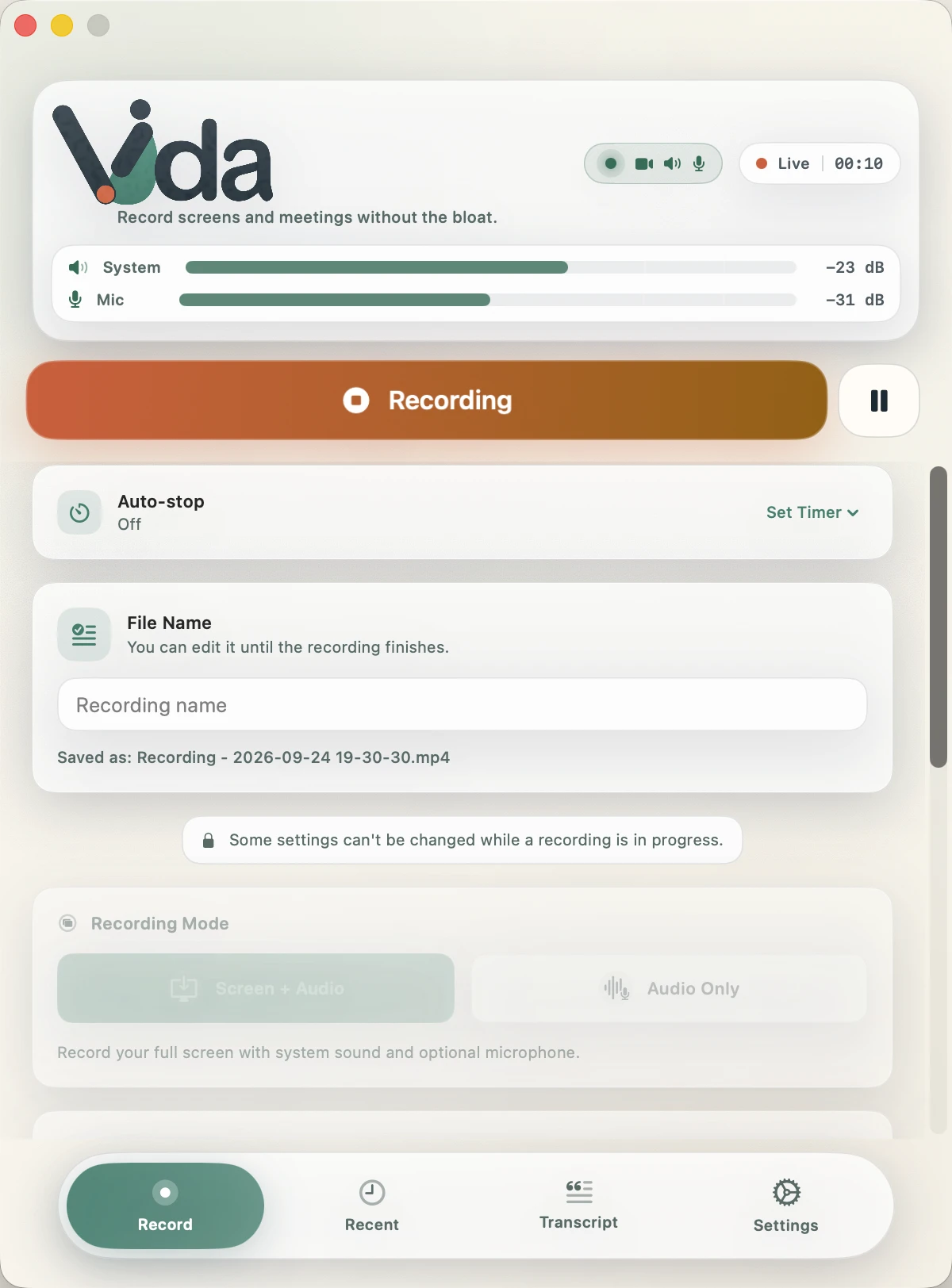
The screen recording built into macOS (Shift-Command-5) can use a microphone, but Apple documents no option for the sound your Mac plays. To record both, route system audio through a virtual audio driver such as BlackHole, or use an app that captures system audio directly. Vida does it without a driver and confirms each source while it records.
Three ways to do it
| Method | What it records | What you need |
|---|---|---|
| macOS Screenshot toolbar | What it recordsScreen and microphone | What you needNothing to install. No system audio. |
| BlackHole and Audio MIDI Setup | What it recordsSystem audio and microphone, in the recording app you choose | What you needA free virtual audio driver, a Multi-Output Device and an Aggregate Device |
| Vida | What it recordsScreen or audio only, with system audio and microphone | What you needmacOS 14 or later. No driver and no audio routing. |
The BlackHole route
- Install BlackHole 2ch from Existential Audio.
- Open Audio MIDI Setup, click the add button and create a Multi-Output Device with your speakers or headphones and BlackHole 2ch.
- In System Settings, open Sound and choose the Multi-Output Device as the output.
- Back in Audio MIDI Setup, create an Aggregate Device with your microphone and BlackHole 2ch.
- In your recording app, choose the Aggregate Device as the audio input.
- When you finish, switch the sound output back to your speakers.
It is free and flexible. The cost is the setup, switching the output for every recording, and playing the file back afterwards to be sure both sources were captured.
Record it with Vida
- Get Vida from the Mac App Store and open it. Allow Screen Recording and Microphone when macOS asks. On macOS 15 and later the setting is called Screen & System Audio Recording.
- Go to Record and choose Screen + Audio, or Audio Only if you do not need video.
- Open Audio, turn on System Audio and Microphone, and pick your microphone.
- Click Start Recording. Play a short sound and say a few words, then wait until the Speaker and Mic icons turn green.
- Stop when you are done. Vida saves the file in ~/Movies/Recordings as MP4 or MOV, or as M4A or WAV for audio only.
Check that every side is recording
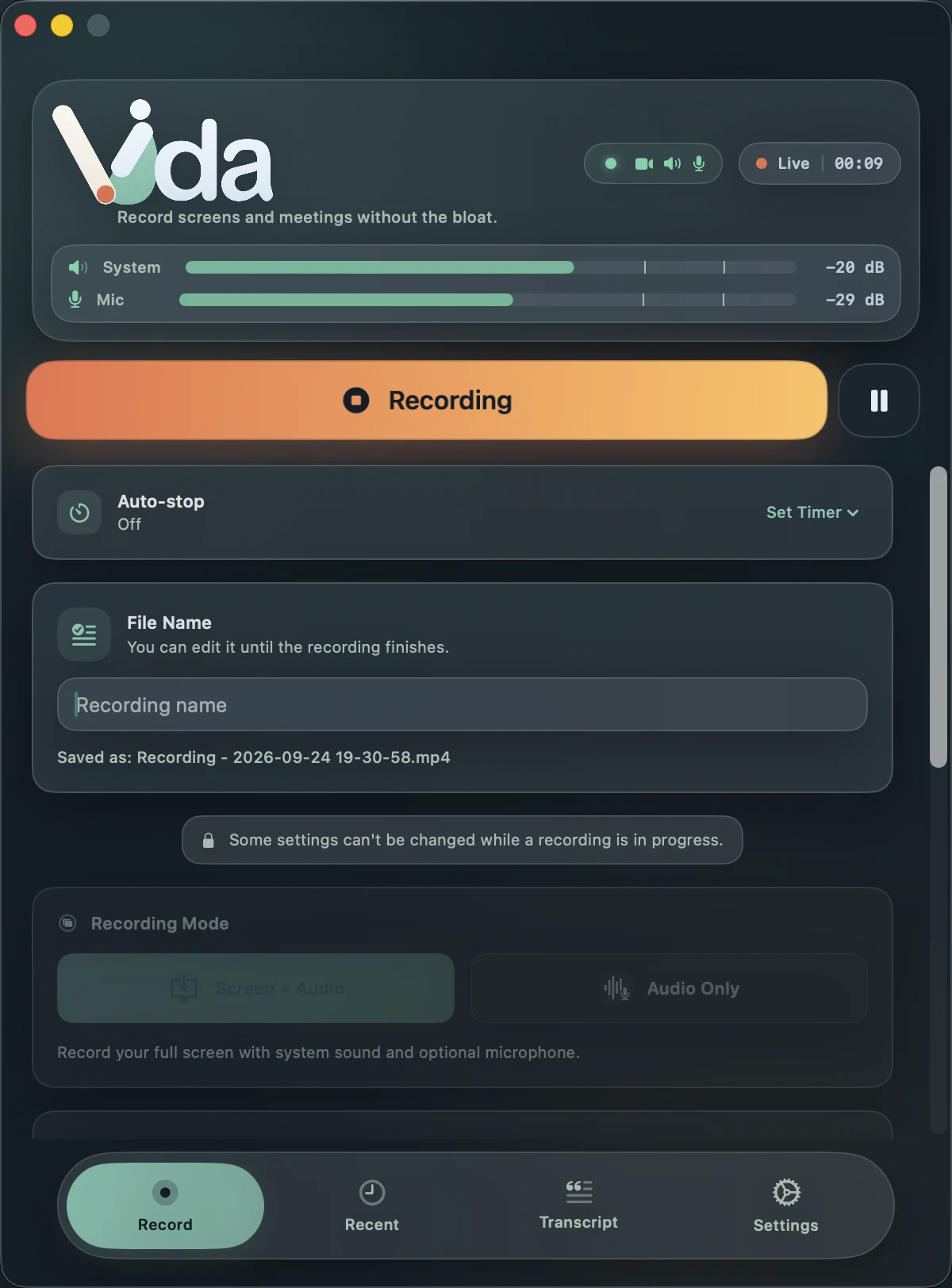
Vida's REC health badge confirms each source from real captured samples, so you know the recording is working while the meeting is still running, not afterwards.
- Video
- Turns green when the screen is being written to the file.
- Speaker
- Turns green when sound from the Mac, including the other participants, is being recorded.
- Mic
- Turns green when your own voice is being recorded.
Orange means Vida is still confirming a source. Red means a selected source is not being recorded: stop and fix it before you continue.
Tell people you are recording
Vida records from your Mac and adds nothing to the meeting, so the other participants will not see a recording notice. Tell them before you start, follow the law where you and they are, and respect your organization's policy. If the organizer has turned recording off, ask them first.
Good to know
- Screen + Audio records one full display, not a single window. Move private windows to another display, or use Audio Only.
- System Audio records everything your Mac plays, including notification sounds. Turn on a Focus mode to keep them out.
- Vida needs macOS 14 Sonoma or later, Screen Recording permission for the screen and system audio, and Microphone permission for your voice.
Questions
Does Vida install an audio driver?
No. Vida captures system audio through macOS's own screen capture framework, so there is nothing to route and no sound output to switch.
Why does system audio need Screen Recording permission?
macOS grants access to system audio through the same permission as screen capture. On macOS 15 and later it is called Screen & System Audio Recording.
Can I record system audio without the screen?
Yes. Choose Audio Only to save system audio, your microphone or both as M4A or WAV.
Can I record the audio of one app only?
No. System Audio records everything your Mac plays. Close or mute other apps, and turn on a Focus mode to silence notifications.
Is there a time limit?
No. Vida Free records for as long as you need and your disk has space.
Sources
- Apple Support: Take screenshots or screen recordings on Mac
- BlackHole wiki: Screen record on Mac with system audio and microphone
Third-party details checked on 25 September 2026. Plans and settings change, so check the current rules for your account.
BlackHole is a product of Existential Audio. Vida is not affiliated with it.
Record the meeting. See that it's working. Keep it private.
Requires macOS 14 Sonoma or later. Apple Silicon recommended for transcription.