
Record a lecture on your Mac, with screen and audio
To record a lecture or lesson on a Mac, capture the display with your slides together with your microphone, and the Mac's own sound if you play video. Vida does that in one recording, removes paused time from the file, and can turn the recording into captions for your students.
What you need, and how Vida handles it

- Slides and voice together
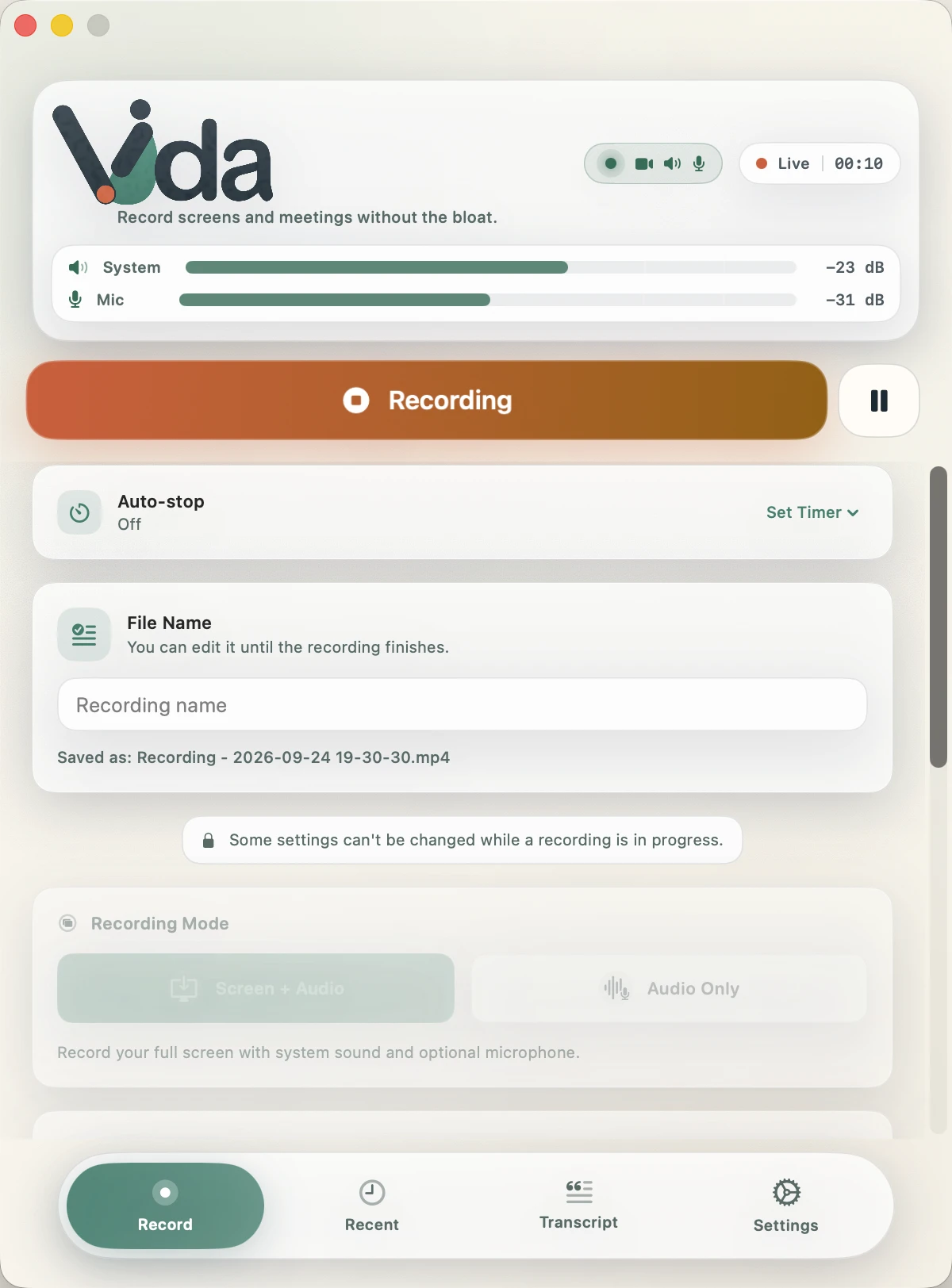
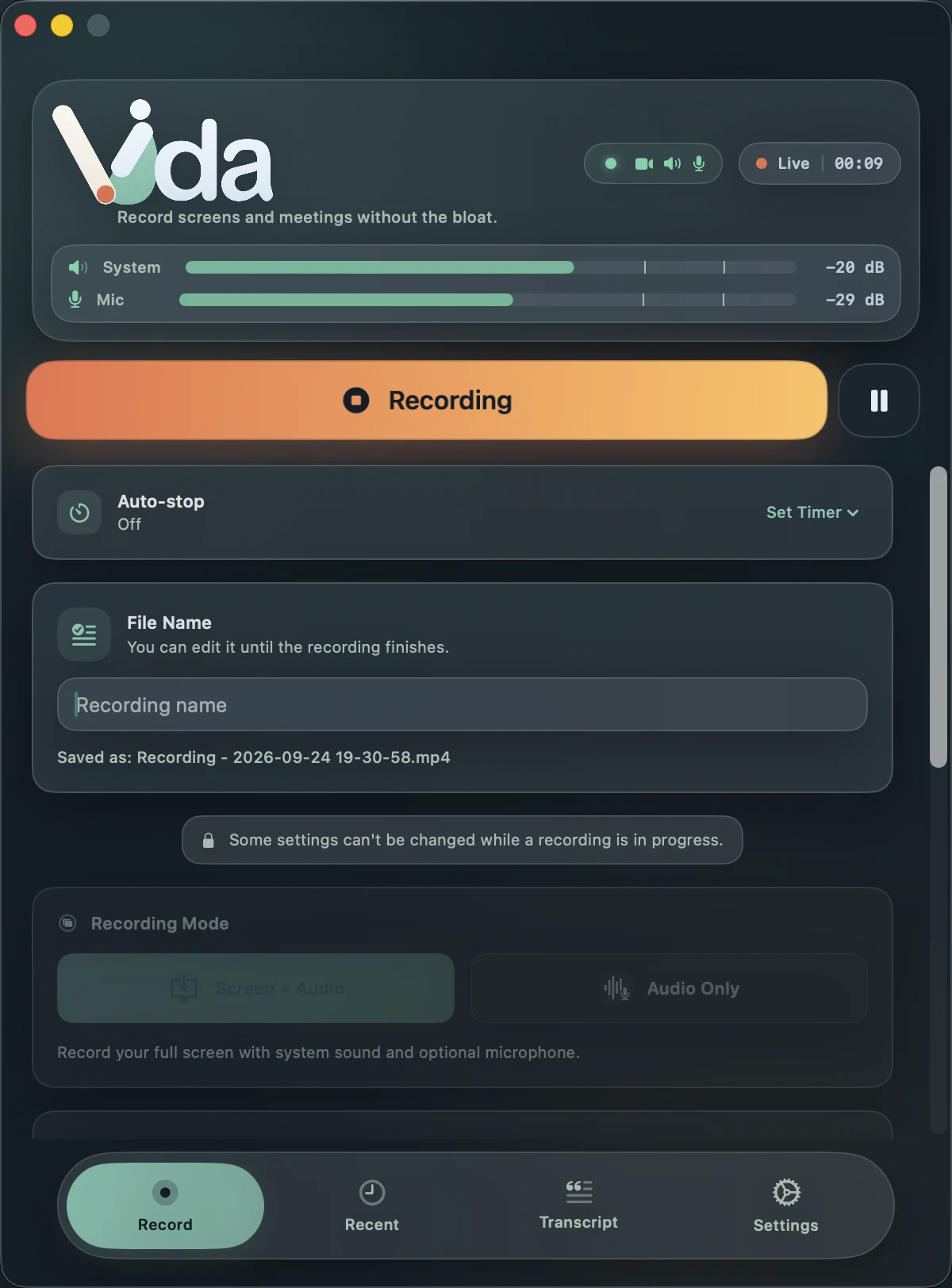
- Screen + Audio records the full display with your microphone, saved as MP4 or MOV.
- Videos you play in class
- Turn on System Audio so clips and demos can be heard in the recording.
- Breaks without dead air
- Pause from the menu bar or the floating controller. Paused time is removed from the finished file.
- Controls that stay out of the recording
- Vida leaves its own windows out of the capture.
- Captions for accessibility
- Transcribe the lecture on your Mac and export SRT or WebVTT captions, or Text for notes.
- Long sessions
- There is no time limit, and an auto-stop timer can end the recording for you.
How to record it
- Get Vida and allow Screen Recording and Microphone when macOS asks.
- Open your slides on the display you will record. With two displays, keep your notes on the other one.
- In Vida, choose Screen + Audio, pick the display and turn on Microphone. Turn on System Audio if you will play video.
- Choose MP4 for the widest compatibility with learning platforms and video players.
- Click Start Recording, check the REC badge, then teach. Pause from the menu bar during breaks.
- Stop when you finish, then transcribe the recording to export captions.
Before you record
Tell students and guests when you are recording, and follow your school's policy on recording classes.
Good to know
- Vida records a full display, not one window or a region. Keep private windows on another display.
- There is no webcam overlay or video editing. Trim the file or add your camera in another app if you need to.
- Captions come from automatic transcription. Review them before you publish.
Questions
Can I record a lecture with the built-in Mac tools?
Yes. Shift-Command-5 records the screen with your microphone, but Apple documents no option for the sound your Mac plays.
Can I record a class that runs in Zoom or Teams?
Yes. Turn on System Audio to capture remote participants along with your microphone.
How long can a recording be?
As long as your class runs and your disk has space. Vida Free has no time limit.
Which caption formats can I export?
SRT and WebVTT, plus Text and Markdown.
Record the meeting. See that it's working. Keep it private.
Requires macOS 14 Sonoma or later. Apple Silicon recommended for transcription.