

Record a Google Meet call on your Mac
Google Meet's own recording is only available on some paid Google Workspace editions and Google One plans with 2 TB or more, and the host has to allow it. Vida records the call from your Mac instead: the other participants through system audio, you through the microphone, and your screen if you want it. Recording is free.
Your options on a Mac
| Method | What it records | What you need |
|---|---|---|
| Google Meet recording | What it recordsVideo and audio of the meeting | What you needAn eligible Workspace edition or Google One with 2 TB or more, and permission from the host |
| Vida | What it recordsYour screen, the call's sound and your microphone, saved on your Mac | What you needmacOS 14 or later. Records what your Mac plays, so it does not use Meet's recording feature. |
Record it with Vida
- Get Vida from the Mac App Store and open it. Allow Screen Recording and Microphone when macOS asks. On macOS 15 and later the setting is called Screen & System Audio Recording.
- Join the call in your browser.
- In Vida, go to Record and choose Screen + Audio, or Audio Only if you only need the sound.
- Open Audio, turn on System Audio for the other participants and Microphone for your voice, and pick the microphone you use in Meet.
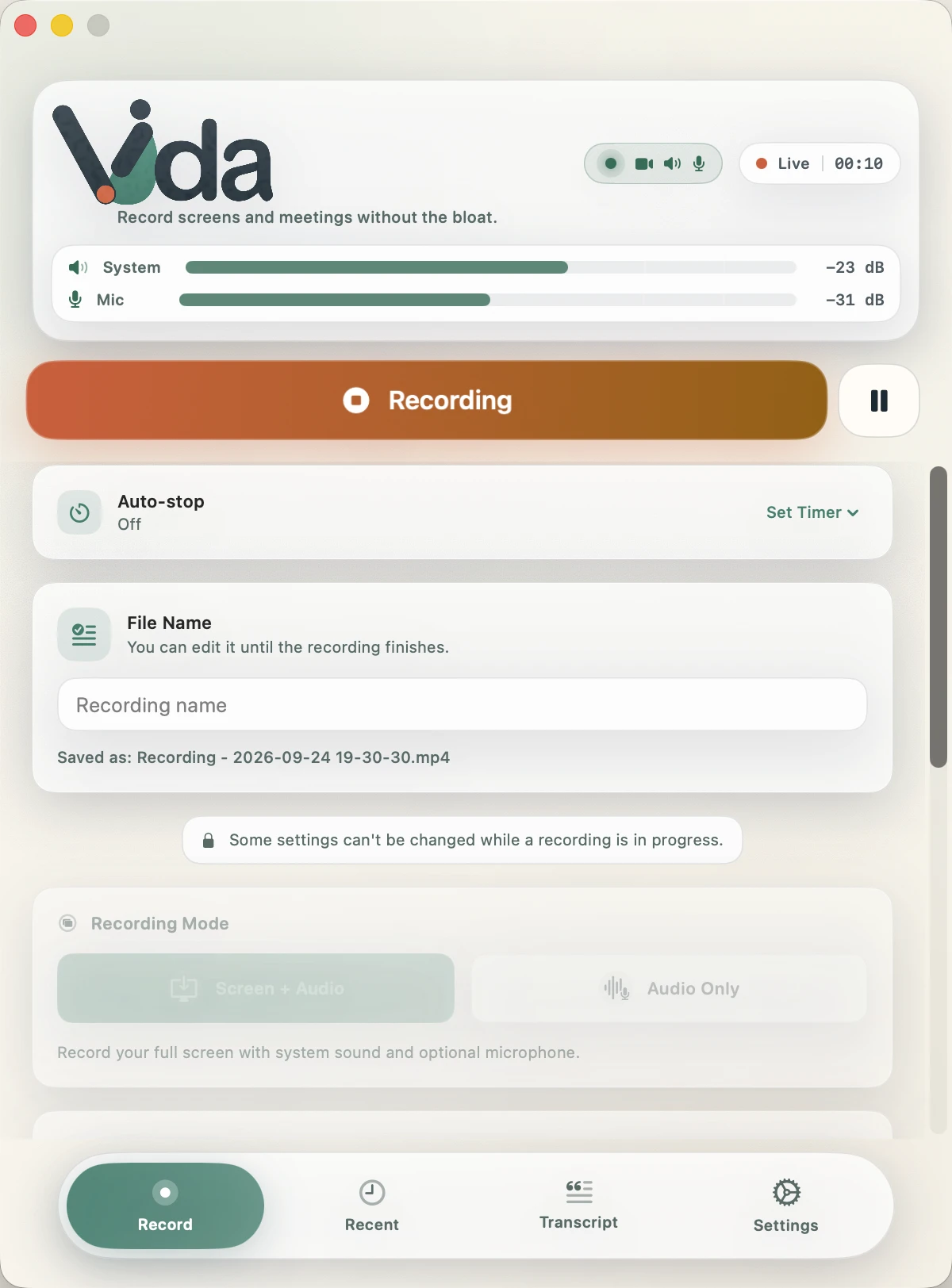
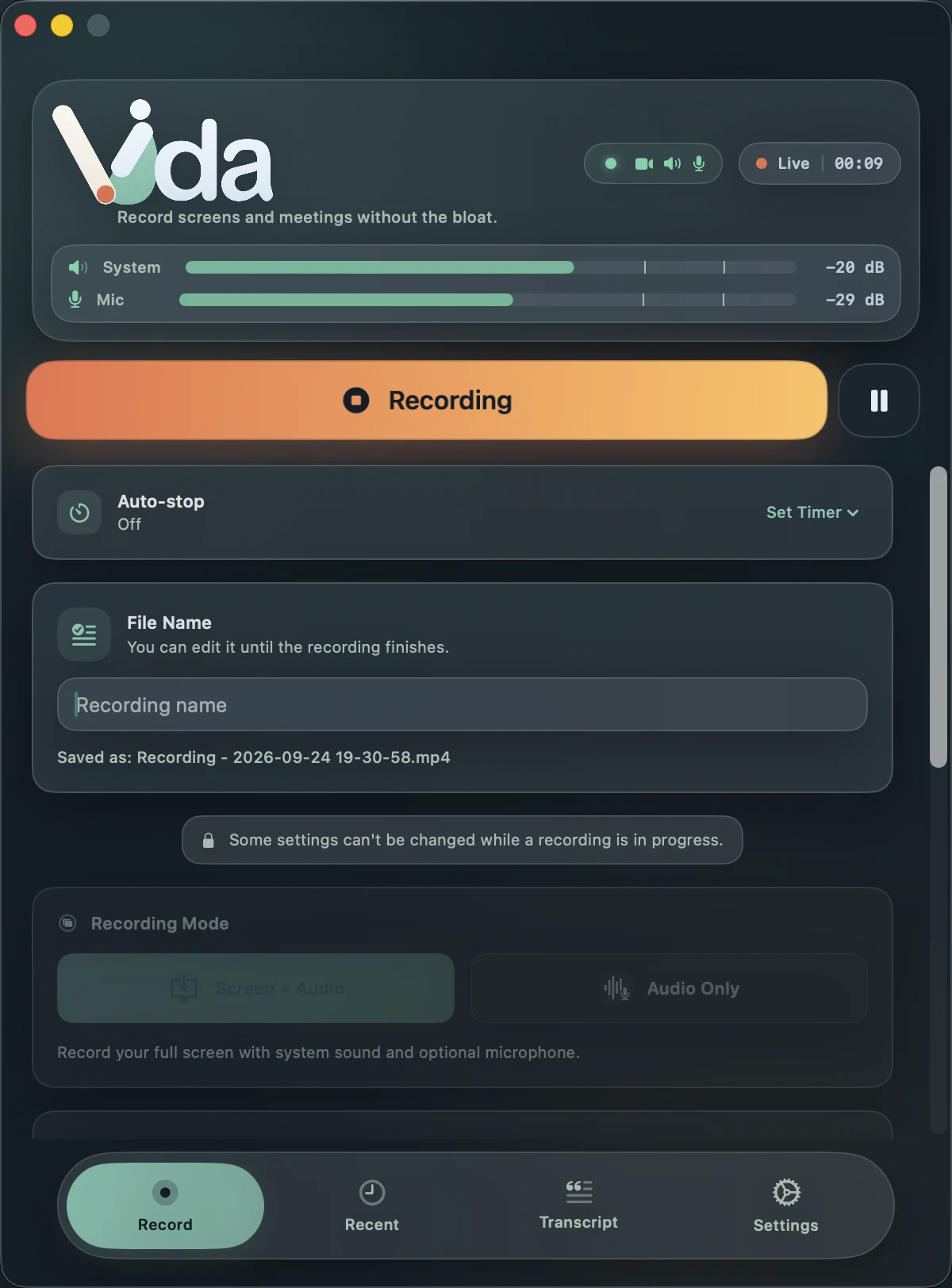
- Click Start Recording. After the countdown, wait until the Video, Speaker and Mic icons all turn green.
- Stop when the call ends. Vida saves the file in ~/Movies/Recordings.
- For a transcript with speaker labels, transcribe the recording on your Mac. Your first five complete transcriptions are free.
Check that every side is recording
Vida's REC health badge confirms each source from real captured samples, so you know the recording is working while the meeting is still running, not afterwards.
- Video
- Turns green when the screen is being written to the file.
- Speaker
- Turns green when sound from the Mac, including the other participants, is being recorded.
- Mic
- Turns green when your own voice is being recorded.
Orange means Vida is still confirming a source. Red means a selected source is not being recorded: stop and fix it before you continue.
Tell people you are recording
Vida records from your Mac and adds nothing to the meeting, so the other participants will not see a recording notice. Tell them before you start, follow the law where you and they are, and respect your organization's policy. If the organizer has turned recording off, ask them first.
Good to know
- Screen + Audio records one full display, not a single window. Move private windows to another display, or use Audio Only.
- System Audio records everything your Mac plays, including notification sounds. Turn on a Focus mode to keep them out.
- Vida needs macOS 14 Sonoma or later, Screen Recording permission for the screen and system audio, and Microphone permission for your voice.
Questions
Can I record Google Meet with a free Google account?
Google lists Meet recording only for eligible paid plans. Vida records the call from your Mac whatever your Google plan.
Will participants be notified?
Meet notifies participants when its own recording starts. Vida does not use Meet's recording, so tell participants yourself.
Does it work in Safari and Chrome?
Yes. System Audio records sound from your browser like any other app on your Mac.
Can I get a transcript?
Yes. Vida transcribes on your Mac with speaker labels in ten spoken languages and exports Text, Markdown, SRT and WebVTT.
Sources
Third-party details checked on 25 September 2026. Plans and settings change, so check the current rules for your account.
Google Meet is a trademark of Google LLC. Vida is not affiliated with or endorsed by Google.
Record the meeting. See that it's working. Keep it private.
Requires macOS 14 Sonoma or later. Apple Silicon recommended for transcription.